Registering for Classes
Register for classes at Saint Louis University using Banner Self Service - Student.

During the weeks of registration time-ticketing, students will be able to register based on their earned credits, which are ranked from highest to lowest. Earned credits are the total number of successfully completed credits, including transfer credits; in-progress courses are not included.
Each student will get a time ticket that shows the earliest date and time they can start registering for classes. The Office of the University Registrar will announce and add time ticket information to Banner Self-Service for students to view:
- Go to My Apps Dashboard and click on the Banner Self Service - Student icon.
- Under General Links, click on My Student Profile.
- Important: At the top left, select the term you are registering for.
- Once you select it, go to the top right, and click on Registration Notices.
- Your time-ticket will appear at the bottom of the list.
Please note the time is displayed in St. Louis' U.S. Central time. The schedule with Madrid times is available on the registrar's site.
Banner provides access for students to:
- Check billing information.
- Add or drop courses.
- Verify financial aid information.
- View student records and transcripts.
Non-SLU Visiting Students
First, meet with your home-campus advisor. You are responsible for ensuring the courses you register for will fulfill your requirements and transfer to your institution. During the authentication process, if you are asked for a PIN the first time you go to My Apps Dashboard, enter your date of birth in the mm/dd/yyyy format. Also, if you entered a cell phone during authentication, make sure you have it with you to receive security codes.
All Other Students
Meet with your advisor before registration. An advisor-meeting hold may be placed on your account, which your advisor will release when you meet. You will not be able to register until your advisor releases this hold.
How to Register
Check your time ticket first; you will not be able to register before the date and time provided.
- Search for courses in courses.slu.edu and write down the CRNs of the courses you want.
a. Use the Course Search panel on the left to filter courses of interest, choosing Madrid, Spain under Campus.
b. Make sure the course does not conflict with other courses and that you fulfill all requirements to take the course. - Use Banner Self Service to register, and add/drop both courses and waiting lists.
a. Log in to My Apps Dashboard.
b. Click on the Banner Self Service - Student icon.
c. Under Student Records / Registration links, click on Registration.
d. Click on Register for Classes.
e. Select the Term and click on Continue.
f. Select Madrid, Spain under Campus and click Search or Advanced Search.
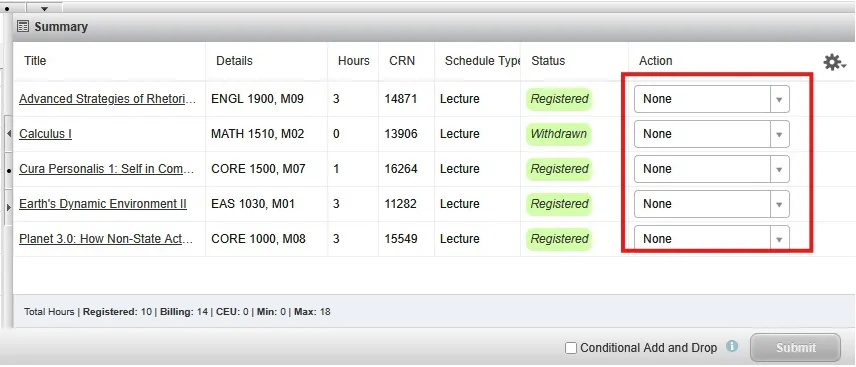
g. Next to the course you want, click on Add and Submit or enter your course reference numbers (CRNs) in the boxes on the Enter CRNs tab and click Add to Summary.
h. At the bottom of the page in the Summary Section, click Submit. - Use our course catalog the day before the first day of classes to see the room where your class meets, and see the Schedule of Classes and Rooms.
Banner Self Service – Student also allows you to view your class schedule:
- Go to My Apps Dashboard and click on the Banner Self Service - Student icon.
- Click on My Student Profile under General Links.
- Click on Week at a Glance, under Registration Information, from the left-side menu, and select the Term.
Waitlists
If a course is full, you can waitlist the course by clicking on the down-arrow next to the course and selecting Waitlist under Action. Please see all the Waitlist information including how to see your position in the list. As you organize your schedule, drop waitlists you no longer need.
To Drop or Withdraw a Course
- Log in to My Apps Dashboard.
- Click on the Banner Self Service – Student icon.
- Under Student Records/Registration links, click on Registration Changes (or Register for Classes).
- Click on Register for Classes and select the current term.
- Under Schedule Summary (bottom-right of the screen), click the down-arrow next to the course in the Action column and change None to Drop (Web) or Withdraw (Web).